IN THIS ARTICLE
What’s in a memory, anyway?
How does an AI user who is not an engineer manage, organize and maintain the context of multiple types of projects within Claude Cowork?
I’m not a developer, SWE or coder. I’m a motion designer and brand strategist who is adopting LLMs into her creative workflows. I know just enough to be somewhat dangerous when it comes to being productive and enabled with AI tooling, and like many people who have folded LLMs into their everyday workflows, I found myself in need of a better way to build memory persistence when using them.
The memory persistence tools that exist for LLMs are mostly built for engineers. The assumption baked into most of them is that the user is solving a retrieval problem at scale: an LLM (or multiple ones) needs to search across a dense codebase or a massive knowledge base, configured by someone comfortable with coding and development. This often gets into areas far beyond my expertise or use case.
My situation is a bit different. My work with Claude spans the creation of websites (like this one), small apps, design systems, and personal productivity tools. The context Claude needs isn’t “understand 100,000 lines of code.” It’s “remember what we decided, what tech stacks we’re using and why, why I don’t want you to make assumptions about design decisions, and where we left off two weeks ago.” I’m trying to solve for a continuity problem.
Even with Cowork’s ability to point Claude at a specific folder and focus work to that domain, keeping Claude oriented across multiple projects without it hallucinating decisions or losing the thread entirely, gets frustrating fast.
As the saying goes, there’s got to be a better way!
Turning Claude Cowork into a bespoke project management system
My flimsy grasp on how Claude retains memory across sessions goes something like this:
- CLAUDE.md is the brain. Claude loads it at the start of every session — no prompting required. It needs to be lightweight and specific: who I am, how I like to work, where to find things. The less noise in there, the better.
- Cowork lets you point Claude at a specific folder and keep it there. Within that folder, you can structure things however makes sense for your work. Mine has five subfolders: memory, resources, skills, templates, and projects. Claude knows they exist because CLAUDE.md tells it — it acts as a map as much as a brain. It knows what kind of projects we’re working on, where to find them, and how to behave at the start and end of a session.
With this framework in mind, I had Claude help me build a memory system.
How the memory system works
I had Claude help me build a way to start new projects, track their progress, and organize them. I relinquished my creativity to Claude who suggested to call it “Engram” …that works! Here’s the eagle eye view of how Engram set up:
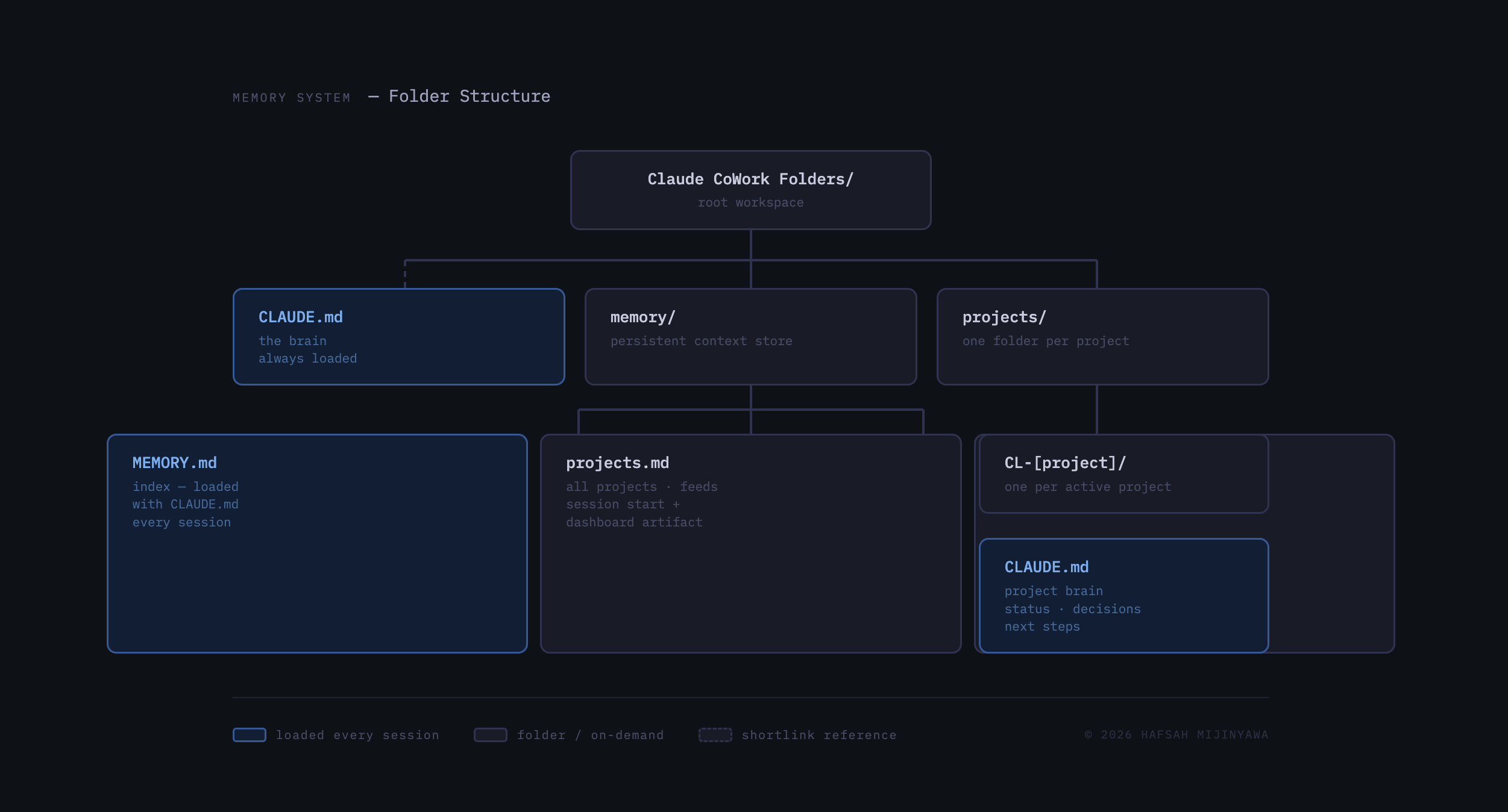
CLAUDE.md: The Brain
This is the file that Claude automatically sees when a chat session is first initiated. This file contains the key context Claude needs to orient and re-orient around its users preferences, work style and any necessary resources the user will expect it to be able to quickly access.
This is what lives in my Claude’s root CLAUDE.md:
# Memory

## My User

**Hafsah** — Senior Media Producer/Motion Designer at Expel (cybersecurity/MDR company)
Based in [REDACTED]
Contact: chatter@wetcloudmedia.com

---

## My User's Work

**Expel** — Produces video media, motion design, and visualizations of cybersecurity concepts
Previously: Duo Security/Cisco, Gemini (web3)

---

## My User's Tools

| Tool | What I use it for |
|------|-------------------|
| **After Effects (AE)** | Primary motion design and animation tool |
| **Illustrator (Illo)** | Vector graphics and illustration |
| **Premiere** | Video editing |
| **Figma** | UI/UX design and prototyping |
| **Audition** | Audio editing and sound design |
| **Cavalry** | Motion graphics (learning) |
| **Framer / Webflow** | Web design and prototyping |
| **Runway.ml** | AI video production |
| **ElevenLabs** | AI voice synthesis |
| **Freepik** | Storyboarding for short films |
| **Lovable** | AI app building |

---

## Our Projects

**CL-*** naming convention = projects developed in partnership with Claude:
- **CL** = Claude
- **[number]** = sequential project ID (two digits)
- **[type]**: T (Tool/app), W (Website), V (Video/content), D (Design), E (Experiment)
- **[slug]**: short kebab-case descriptor (e.g. `CL-A01-sonogram`, `CL-B02-sensei-bot`)

Project index: `memory/projects.md` — single source of truth for all CL- projects (active, complete, on-hold, shelved, ideas). Also drives the CL Projects Dashboard artifact via the `sync-cl-projects-dashboard` scheduled task.

---

## My User's Workflow

- **Primary machine:** Laptop (daily work, research, experiments)
- **OS:** macOS
- **Storage / backup:** NAS for project backups and video file archives
- **Projects range from:** Freelance motion/video/illustration, short films, AI experiments, personal website, screenwriting

---

## User Communication Preferences

- Direct, to-the-point — no filler
- Authentic tone (don't mirror energy, just respond naturally)
- Bullets and line breaks to separate ideas, minimal header noise
- Casual grammar and emojis are welcome
- Learning Japanese (kana level, no kanji) — weave in simple Japanese naturally with kana + romaji
- **Code formatting:** Split commands into separate copy-friendly blocks (never blob multiple commands together)

---

## Technical Experience

Hafsah is **not a trained developer**. She can follow technical instructions and use the terminal, but needs explicit context that developers take for granted.

Core rules (apply to all technical instructions):
- One command per code block, with a plain-English explanation before each
- Every placeholder gets a "where to find this" note
- Absolute file paths only — no "see above"

For multi-step setup, deployment, or server tasks → also read `resources/developer-guide.md`.
For complex troubleshooting or high-stakes technical decisions → read `resources/critical-thinking-protocol.md`.

---

## URL & Web Fetch Behavior

When asked to fetch, read, or pull content from any URL:

1. **Try Claude in Chrome first** — use `tabs_context_mcp` to check if it's connected, then navigate and extract content. This handles auth-walled and bot-blocked pages (e.g. LinkedIn, Notion, internal tools) that `WebFetch` can't reach.
2. **If Claude in Chrome is not connected** — stop immediately and say: *"Claude in Chrome isn't connected — you may need to re-authorize it in the extension. Once you do, I'll try again."* Do not attempt workarounds.
3. **Fall back to `WebFetch` or `WebSearch`** only for public pages where bot-blocking isn't expected (docs, public blogs, etc.).
4. **Never approximate from partial data** — if a fetch fails and content isn't available, say so and ask Hafsah to provide the text directly.

---

## Hard Rules

These apply to every session, no exceptions:

- **If you can't access source material, say so and stop.** Don't approximate, don't infer from titles or search snippets, don't synthesize from partial context. Ask for the content directly. An honest "I can't access this" is always more useful than a confident guess.
- **Distinguish what you know from what you've verified.** If the answer comes from training data, say so. If it comes from a source you just read, cite it. If you couldn't access the source, don't present secondhand summaries as analysis.
- **Don't confirm something will work without knowing Hafsah's environment/version.** "Will this work?" requires clarifying questions, not a confident answer.
- **Name a failure mode before calling something correct.** If you can't think of one way it could break, you haven't thought it through.
- **Confidence tracks evidence, not fluency.** Pattern-matching to something similar is not verification.
- **Always cite your sources.** For any information, recommendation, or claim, include links wherever possible so the user can verify accuracy directly.
- **For technical and software work, rely on current documentation — not training knowledge.** If you can't access it and can't search for it, treat it like any other inaccessible source: say so and stop.

---

## Session Behavior

These flows are always active. No setup or prompting required — they trigger automatically.

### Session Start

**Triggers:** "start session", or any natural-language message that opens a working session

When triggered, check what the user wants to work on and branch accordingly:

1. **User names a specific project** → Read that project's `CLAUDE.md` from `projects/[project-slug]/CLAUDE.md`. Confirm what you found and what you understand about where they left off.
2. **User says they want to start something new** → Activate the Project Kickoff agent flow (see Agents below).
3. **User doesn't specify** → Read `memory/projects.md`. List projects whose status is 🔵 WIP or 🟢 Live and ask which one they want to pick up. Once they choose, read that project's `CLAUDE.md` and confirm orientation. If there are no active projects, let the user know and ask if they'd like to start one.

Always confirm you're oriented before diving into work.

### Session End

**Triggers:** "end session", "session end", "save session", "save progress", "wrap up"

1. Update the active project's `CLAUDE.md`: current status, decisions log, open questions, anything that changed this session.
2. Update the `Last updated` date in the project CLAUDE.md header to today's date.
3. If the project's status changed (new phase, completed, blocked, shelved), also update its line in `memory/projects.md` — change the status emoji (🔵/🟢/✅/⏸️/📦) and the description if needed. Don't move it between files; there's only one file.
4. Write or rewrite the `## Next Session` section in the project CLAUDE.md with what to pick up next time.
5. Confirm what was saved.

---

## Agents

Agents are specialized modes that activate on trigger phrases. Project Kickoff is built in. For agents that need detailed instructions, create a file in `resources/` — see `resources/example-agent.md` for the format.

### Project Kickoff Agent

**Triggers:** "new project", "start a new project", "I want to build [X]", "kick off [X]"

1. Ask: project name, type (Tool / Website / Video / Design / Experiment), one-line description, and whether it needs a phased CODEX plan.
2. Scan the `projects/` folder to determine the next sequential ID number.
3. Create a new folder for the project inside `projects/`, named using the CL naming convention (e.g. `projects/CL-[X##]-project-slug/`). If a folder with that name already exists, ask if they meant to resume it.
4. Generate a `CLAUDE.md` inside that folder from `templates/project-CLAUDE.md`. Pre-fill: project name, project ID, type, owner, description, and started date. Leave Tech Stack, Architecture, Design Direction, and Conventions as TBD until decisions are made. If a CODEX was requested, also generate `CODEX.md` from `templates/project-CODEX.md`.
5. Add a stub entry to `memory/projects.md` under the appropriate category section. Use the format: `- **CL-XX — Project Name** 🔵 WIP — one-line description.` (Or 💡 Idea if it's reserved but not started.)
6. Confirm the project is set up and ask what to work on first.

### Custom Agents

| Agent | Triggers | Files to load |
|-------|----------|---------------|
| **Script Consultant** | "work on the script", "script development", "I have a story idea", "let's develop [X]" | `resources/copilot_screenwriter_instructions.md` + `resources/story_frameworks_knowledge.md` |
| **Storyboard Partner** | "let's storyboard", "storyboard this", "break this into shots" | `resources/storyboard-partner-instructions.md` + `resources/storyboard-partner-supporting-materials.md` |
| **Prompt Engineer** | "help me prompt [platform]", "prompting Higgs / Runway / Veo", "I need prompts for [X]", "let's prompt engineer" | `resources/prompt-engineer-instructions.md` + `resources/prompt-engineer-supporting-materials.md` |

These agents form a pipeline: **Script Consultant → Storyboard Partner → Prompt Engineer**. You can enter at any stage — you don't have to start from script if you already have a storyboard.
memory/
memory/ contains markdown notes that capture specific things I’ve told Claude to remember. There’s a few types of notes I usually save here: things I want Claude to bookmark for the future to help our interactions and workflows, a language glossary, feedback on how I like to work, references for where to find things. This folder acts as a guardrail to help prevent Claude from slipping back into hallucination and memory loss from session to session.
The other is a behavioral layer that Claude maintains on its own, captured in a file called MEMORY.md that lives in app-managed storage you don’t directly access. That’s where it holds how I like to work: my writing voice, corrections I’ve made, feedback I’ve given across sessions.
Together they give Claude two different things: what we’re working on, and how we work together.
projects/, project kickoff agent & projects.md
This is the core reason why this system works for me.
Similar to Projects in Claude on the web, this Cowork-native system enables projects/ to now live locally on my laptop as unique folders that Claude or any AI can access at any time.
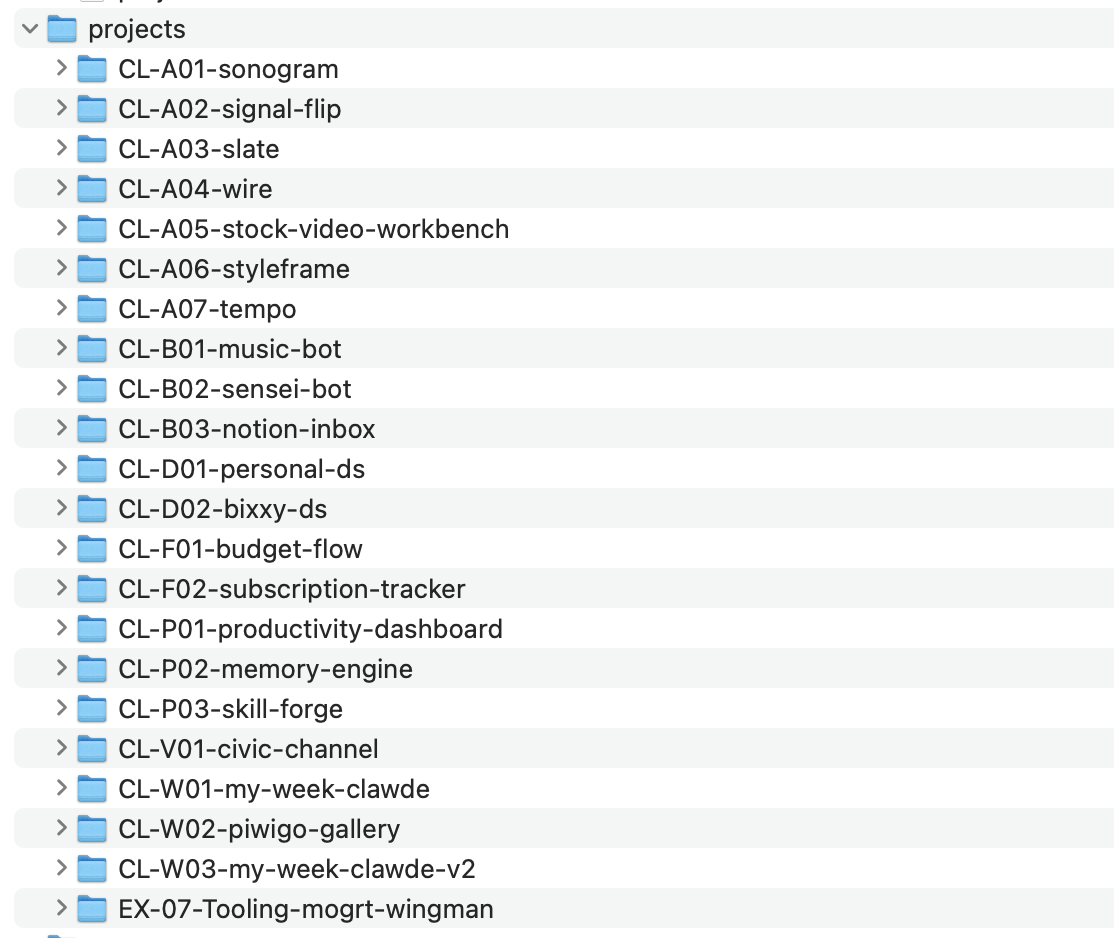
The system features a /project kickoff agent invocation, which triggers Claude to onboard a new project. Claude asks me a few questions about the project, and then creates a new folder within projects/ with a project level CLAUDE.md inside. That markdown contains a project’s basic overview, current status, decision log, open questions, what to pick up next time.
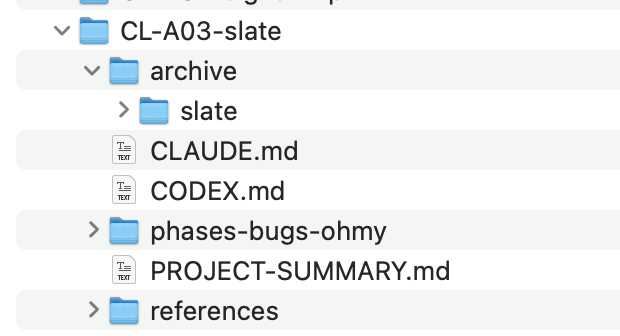
To solve the initial problem I ran into with this system of Claude scouring project folders for context about all the things we have in flight, I had it do two things:
Create a simple project index in memory/projects.md.
When I start or pick up a project, Claude knows, by way of its “brain” (the root CLAUDE.md), to scan this file to quickly orient around what we’ve worked on, our unique project naming conventions and project chronology.
Create a project overview dashboard
This evolved to being a live artifact that reads projects.md to orient around my various project statuses. This allows me to get an eagle eye view of every single project I have spun up.
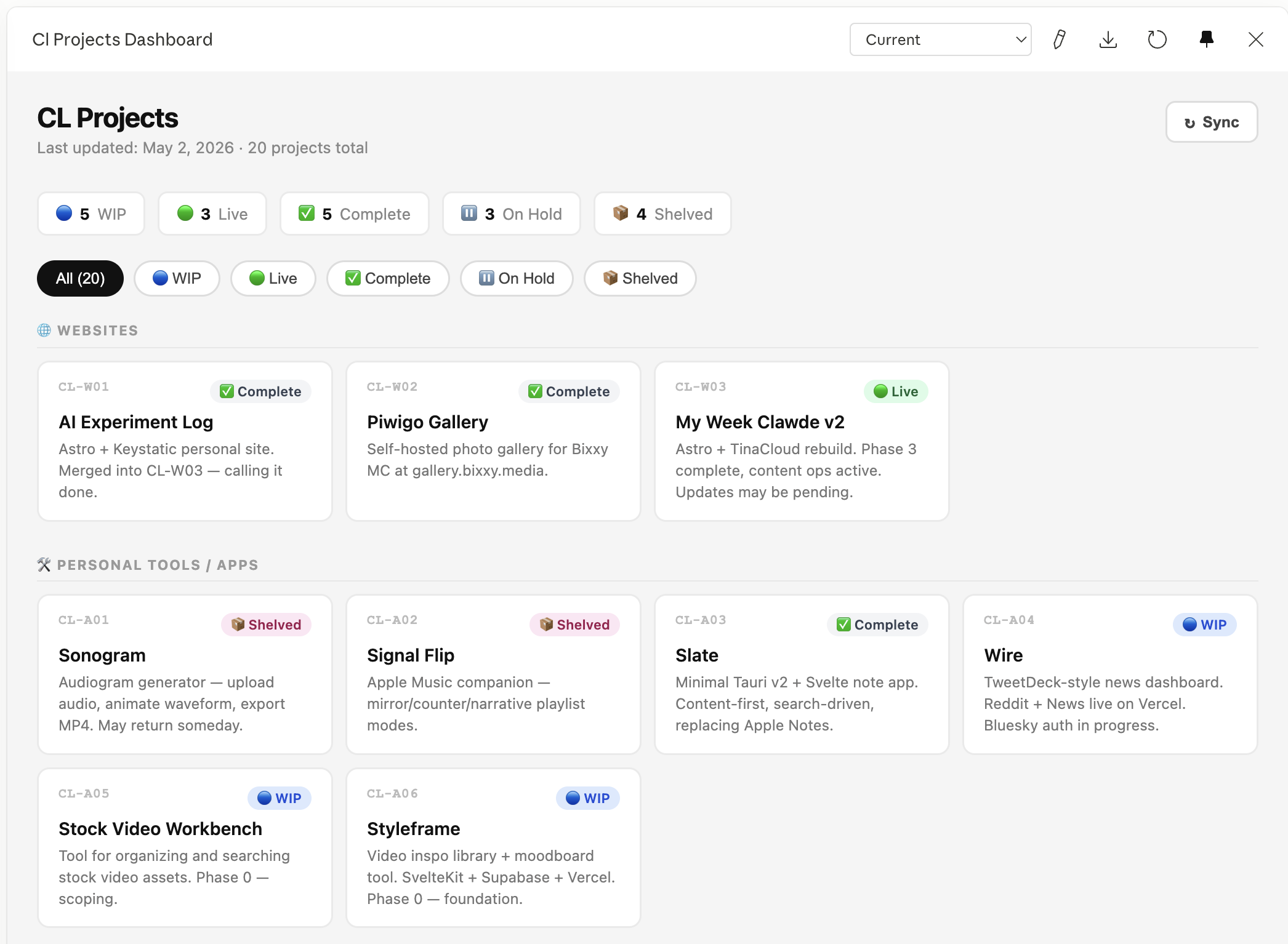
I also had Claude include custom commands to help make this system more user friendly:
/start sessionwhich triggers Claude to ask me which specific project I want to pick up if I don’t immediately tell it which one)/end sessionwhich, assuming I remember to invoke it, triggers Claude to capture decisions and updates made a session’s chatlog to the context of the project-level CLAUDE.md, and projects.md, if needed.
What’s cool about this is that now, my projects are fully portable from AI to AI. So for example, I can copy a project folder from my work Claude instance (which uses a version of this memory system), and give it to Claude on my personal laptop, where it will then be able to orient around my work project. Similarly with OpenAI’s Codex, I can pop in a project folder to Codex’s reference folder, and have it orient by telling it to read the CLAUDE.md.
What the system looks like in use
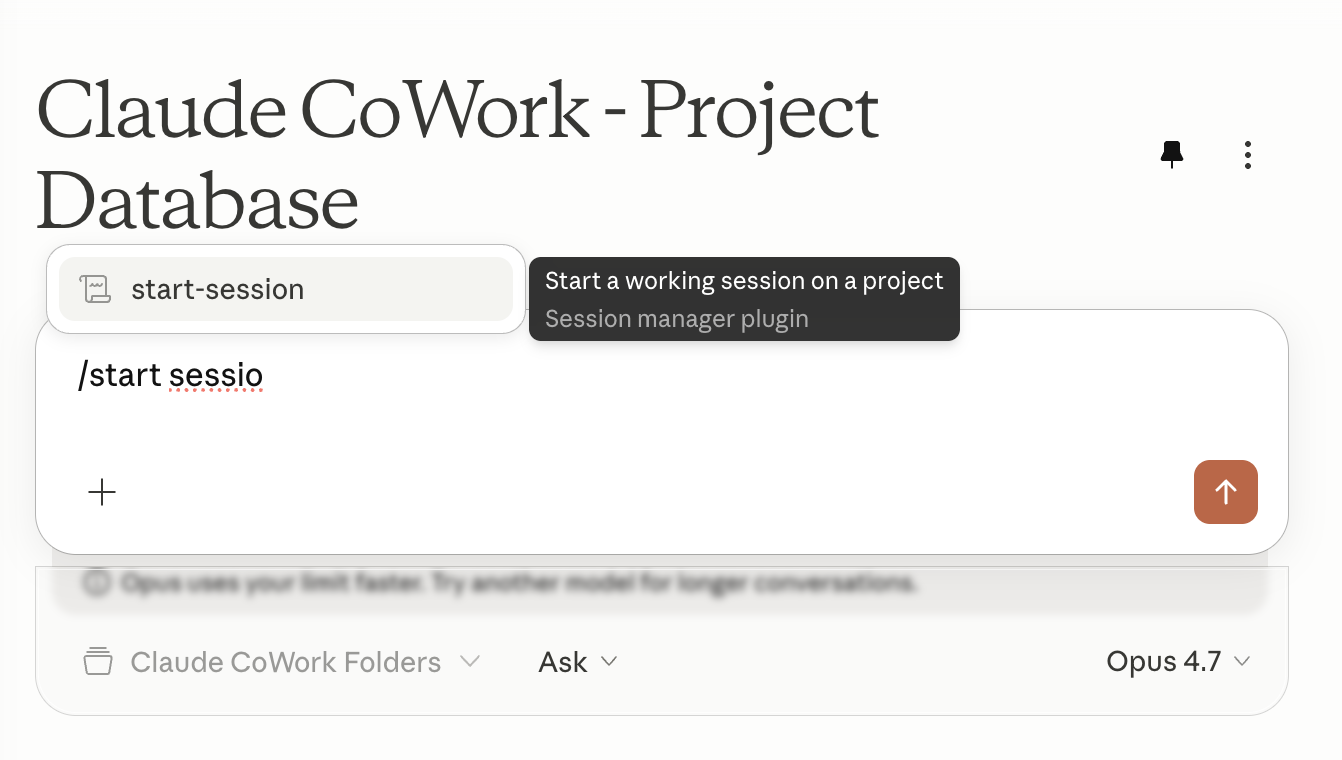
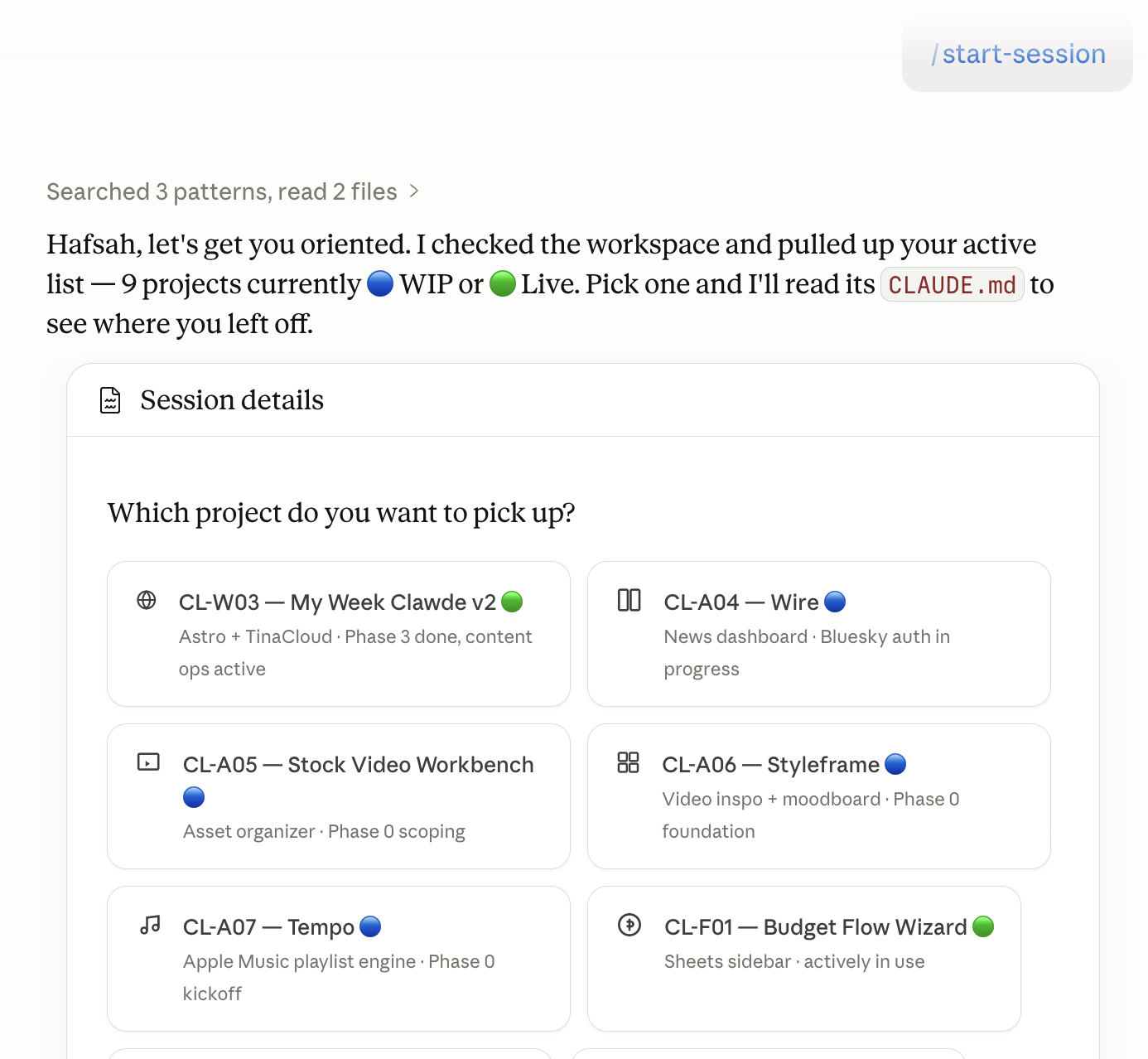
- I open Cowork, say or invoke “start session”
- If I don’t give it the name of the project I want to start up, Claude handily presents a list of everything in flight and asks me to tell it which project I want to pick up.
- Claude reads the project level CLAUDE.md — current status, last decisions made, what to pick up. Gives me a quick “here’s where we left off” before we dive in.
- And we’re working.
- When I’m ready to wrap, I say “end session”.
- Claude writes updates from our chat log status back to the project file.
Neat! …Does it actually work?
Mostly!
The system has its flimsy moments, but it has been generally reliable over the course of 2 months of iterating on it and usig it.
There are still moments where something we already figured out needs correcting again, or a session summary reads suspiciously jazz-handsy about what we actually got done. The system doesn’t run itself yet. There is still drift and missing context on occasion due to me not running end session updates. It is not a set-it-and-forget-it situation. Nothing ever is with AI.
But it’s MUCH improved on the original state of things, which was starting every session from scratch, spending the first fifteen minutes re-establishing context, re-explaining the project, or correcting Claude’s assumptions before doing any actual work. That was tiring and extremely frustrating, not to mention a huge waste of tokens/money in the long run.
What’s also nice is now I can easily orient myself around the projects I spin up with AI and put a number to them. The project index isn’t just for Claude, it’s for me to see what my actual ROI with AI has been (spoiler….not great Bob!) Wasted time aside, this system has helped AI enabled workflows feel less like throwing tokens into a black box and more like a tangible process with output (again…whether or not that output is always useful/functional…).
For a person like myself whose mind and mental model is happiest with some form of structure and process, this system has been hugely useful. I hope that another creative or creatively minded builder who knows just enough to be dangerous with AI will find some utility from this system. If you do (or don’t!), DM me.